To improve WordPress speed, fix things in this order: measure first, then images, fonts, third-party scripts, unused CSS and JavaScript, caching, and finally the server. That order gives the biggest improvement for the least risk. Most slow WordPress sites I am hired to fix pass Core Web Vitals after the first four steps — without changing the design.
Speed is not only about rankings. Every extra second of loading costs leads and sales, especially on mobile. Google uses Core Web Vitals as a ranking signal, and visitors leave pages that jump around or take five seconds to show the main image.
This is the checklist I follow on client sites, with the reasons behind each step.
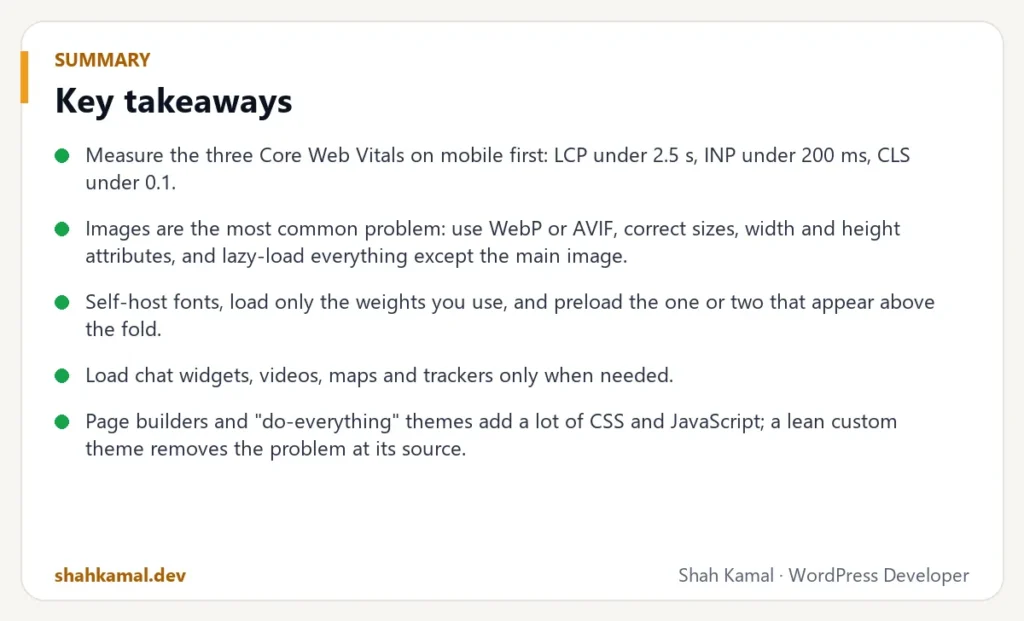
Key takeaways
- Measure the three Core Web Vitals on mobile first: LCP under 2.5 s, INP under 200 ms, CLS under 0.1.
- Images are the most common problem: use WebP or AVIF, correct sizes, width and height attributes, and lazy-load everything except the main image.
- Self-host fonts, load only the weights you use, and preload the one or two that appear above the fold.
- Load chat widgets, videos, maps and trackers only when needed.
- Page builders and “do-everything” themes add a lot of CSS and JavaScript; a lean custom theme removes the problem at its source.
- No caching plugin can fix a slow server — PHP version, OPcache and hosting quality matter.
What are Core Web Vitals, in plain English?
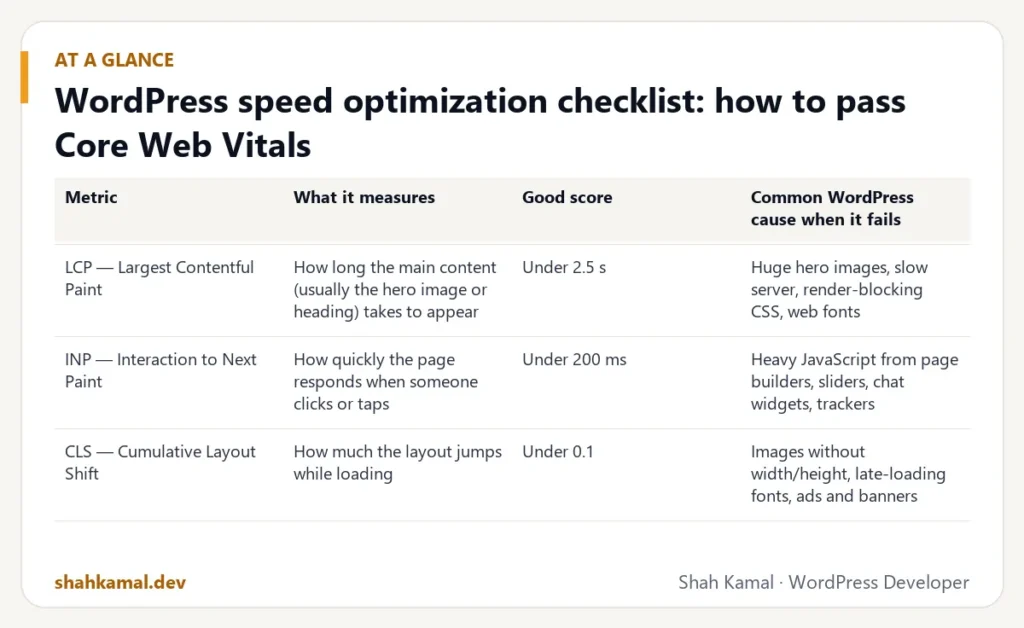
Core Web Vitals are three measurements Google uses to judge how a page feels to a real visitor.
| Metric | What it measures | Good score | Common WordPress cause when it fails |
|---|---|---|---|
| LCP — Largest Contentful Paint | How long the main content (usually the hero image or heading) takes to appear | Under 2.5 s | Huge hero images, slow server, render-blocking CSS, web fonts |
| INP — Interaction to Next Paint | How quickly the page responds when someone clicks or taps | Under 200 ms | Heavy JavaScript from page builders, sliders, chat widgets, trackers |
| CLS — Cumulative Layout Shift | How much the layout jumps while loading | Under 0.1 | Images without width/height, late-loading fonts, ads and banners |
Google measures these on real visitors’ devices (field data). PageSpeed Insights shows both the field data and a lab test. The field data is what counts for rankings; the lab test is what helps you find the cause.
Step 1: How should you measure WordPress speed before changing anything?
Never optimise blind. Before touching a single setting:
- Run PageSpeed Insights on the home page and the two or three most visited pages — on mobile, not just desktop.
- Write down LCP, INP, CLS and the overall score for each page.
- Open the “Diagnostics” section and note the biggest opportunities.
- Check Time to First Byte (TTFB) in the network tab of your browser. If the server takes more than 600 ms to answer, no front-end trick will save you.
- Take a full backup. Some optimisations can break layouts or forms.
Keep the numbers. When you finish, you can show exactly what improved — and catch any change that made things worse.
Step 2: How do you optimise images in WordPress?
Images are the problem on almost every slow site I audit. A single 4 MB photo in the hero section can push LCP past five seconds on a phone.
Use modern formats
Convert JPEG and PNG to WebP (or AVIF). WebP files are usually 25–35% smaller than JPEG at the same visual quality. WordPress supports WebP uploads natively; you can also convert existing images with a plugin or on the server.
Serve the right size
A 2,400 px wide image displayed in a 400 px card wastes bandwidth. WordPress creates several sizes on upload and adds srcset so the browser picks the best one — but only if the theme uses wp_get_attachment_image() or the core image block. Custom themes that print the full-size URL break this.
Add width and height
Every image needs width and height attributes (or a CSS aspect ratio). Without them, the browser does not know how much space to reserve, and the layout jumps when the image arrives. That is CLS.
Lazy-load below the fold, not above it
WordPress lazy-loads images by default. That is good for images further down the page, but the main hero image must not be lazy-loaded. Mark it with fetchpriority="high" so the browser downloads it first. This single change often cuts LCP by a second.
Step 3: How should web fonts be loaded?
Fonts are the second most common cause of slow LCP and layout shift.
- Self-host your fonts instead of loading them from Google Fonts. It removes a connection to another server and avoids privacy issues in some countries.
- Load only the weights you use. Four families with six weights each is 24 files. Most sites need two or three files.
- Use WOFF2 — it is the smallest format and supported by every modern browser.
- Add
font-display: swapso text appears immediately in a fallback font. - Preload the one or two fonts used in the header and hero.
- For non-Latin languages such as Bangla, use
unicode-rangeso the browser downloads the Bengali font only when Bengali text is on the page.
Step 4: How do you stop third-party scripts slowing the page?
Chat widgets, YouTube embeds, Google Maps, Facebook pixels, heatmaps and review widgets each add their own JavaScript — often hundreds of kilobytes. They hurt INP and LCP even though they have nothing to do with your content.
- YouTube and Vimeo: show a thumbnail and load the player only when the visitor clicks play (“click-to-load” or “facade”).
- Maps: show a static image with a link, or load the map on click.
- Chat widgets: load them after a few seconds or after the first scroll.
- Trackers: remove any you no longer look at. Many sites still load three analytics tools and use none.
- Use
deferfor every script that does not need to run before the page appears.
Step 5: How do you remove unused CSS and JavaScript in WordPress?
Most WordPress plugins load their files on every page, whether they are needed or not. A contact form plugin, for example, loads its styles and scripts on your blog posts too.
- Dequeue plugin assets on pages that do not use them. For example, load Contact Form 7 only on the contact page.
- Remove the emoji script and other core extras you do not use.
- Do not load the block library CSS on pages that are not built with core blocks.
- Avoid jQuery on the front end if your theme does not need it.
- Combine and minify only if your server does not use HTTP/2 — with HTTP/2, many small files are fine.
The page builder problem
Page builders like Elementor and Divi, and “multipurpose” themes with dozens of demo layouts, ship large CSS and JavaScript files to support every possible design. You can tune them, but you are always fighting the framework. When a client wants a site that is fast and easy to edit, I build a custom theme with ACF blocks: each block loads only the code it needs.
Step 6: What caching does a WordPress site need?
Caching saves work so the server does not rebuild every page for every visitor.
| Cache type | What it does | How to add it |
|---|---|---|
| Page cache | Stores the finished HTML of a page | Host-level cache, Nginx FastCGI cache, or a plugin |
| Browser cache | Tells browsers to keep CSS, JS, fonts and images | Cache-Control / expires headers on the server |
| Object cache | Stores database query results in memory | Redis or Memcached plus a drop-in |
| OPcache | Keeps compiled PHP in memory | Enabled in PHP settings (on by default on good hosts) |
| CDN | Serves static files from servers near the visitor | Cloudflare or your host’s CDN |
Be careful with page caching on WooCommerce, member areas and forms. Cart, checkout and account pages must never be cached.
Step 7: When is the server the real problem?
If TTFB is above 600 ms on a simple page, the bottleneck is the server, not the theme.
- Use a current PHP version. Every major PHP release has been noticeably faster than the last; very old versions are also a security risk.
- Enable OPcache and give it enough memory.
- Compress text files (HTML, CSS, JS, SVG) with gzip or Brotli.
- Use HTTP/2 or HTTP/3.
- Clean the database: old revisions, expired transients and autoloaded options from deleted plugins slow every request.
- Upgrade the hosting. Cheap shared hosting puts hundreds of sites on one server. A small, well-configured VPS is often faster and not much more expensive.
Step 8: How do you keep a WordPress site fast after launch?
Speed decays. New plugins, a marketing script, a 6 MB image in a new blog post — and six months later the site is slow again.
- Check PageSpeed Insights once a month on your key pages.
- Review the Core Web Vitals report in Google Search Console.
- Test new plugins on a staging site before adding them to the live site.
- Ask whoever uploads content to resize images before uploading.
- Remove plugins you no longer use — deactivated is not enough; delete them.
Quick checklist
- Measure LCP, INP, CLS and TTFB on mobile, and back up the site.
- Convert images to WebP, serve correct sizes, add width/height, don’t lazy-load the hero.
- Self-host fonts, load fewer weights, preload the hero font.
- Load videos, maps, chats and trackers on demand.
- Remove unused plugin CSS/JS and core extras.
- Add page, browser and object caching where safe.
- Upgrade PHP, enable OPcache and compression, consider a VPS.
- Re-measure, compare and monitor monthly.
How do you speed up a WooCommerce store?
Online stores need extra care, because cart, checkout and account pages are personal and cannot be cached like normal pages.
- Cache everything except the cart, checkout and my-account pages. Most good caching setups know these rules; check them anyway.
- Optimise product images first. Category pages often show 20–40 product images; each one matters.
- Limit cart fragments. WooCommerce updates the mini-cart with an extra request on every page. Disable it on pages where the cart is not shown.
- Clean up old orders and sessions in the database, and make sure scheduled tasks (WP-Cron) are running.
- Be careful with “all-in-one” plugins for filters, wishlists and quick view — each adds scripts to every page.
- Use object caching (Redis) on stores with many products or customers.
Which speed “fixes” can do more harm than good?
Not every recommendation in a speed report is worth following.
- Aggressive JavaScript delay can break menus, sliders and forms. Test every interactive element after enabling it.
- Combining every CSS file into one can increase the size of each page on HTTP/2 servers.
- Running three optimisation plugins at once usually causes conflicts. Choose one approach.
- Chasing a perfect 100 score on mobile can cost days for no visible benefit. Passing Core Web Vitals is the goal.
- Removing features that bring business — a chat that creates leads may be worth its weight. Load it later instead of deleting it.
FAQ
Frequently asked questions
What is a good PageSpeed score for WordPress?
Aim for 90+ on desktop and 70+ on mobile in the lab test, but focus on the Core Web Vitals field data: LCP under 2.5 s, INP under 200 ms and CLS under 0.1. A site can pass Core Web Vitals with a mobile score in the 70s.
Will a caching plugin fix my slow WordPress site?
It helps, but it does not fix heavy images, bloated page builders or third-party scripts, and it cannot fix a slow server. Caching works best after the other problems are fixed.
Does site speed affect SEO?
Yes. Core Web Vitals are part of Google’s page experience signals. Speed is not the strongest ranking factor, but a slow site loses visitors, and that loss shows up in conversions immediately.
Is Elementor bad for speed?
Not always, but it adds more CSS and JavaScript than a lean custom theme. With careful settings an Elementor site can pass Core Web Vitals; a custom block theme passes them more easily and stays fast as the site grows.
How long does WordPress speed optimization take?
A typical business site takes one to three days of work. Large WooCommerce stores or sites that need a theme rebuild take longer.
If your WordPress site is slow and you want it fixed properly, see my performance and SEO service or hire me on Upwork.
Planning a project?
Invite me to your job or hire me on Upwork, and we can talk it through there. I usually reply within a few hours.
Hire me on Upwork